MicroSIP Setup Guide (Windows)
Complete step-by-step guide to configure MicroSIP on Windows with your HexaVoice SIP credentials.
MicroSIP Setup on Windows
MicroSIP is a free, lightweight SIP client for Windows. Follow these steps to connect it with HexaVoice.
Step 1: Download MicroSIP
Download the latest version from microsip.org. Choose the installer (not portable) for best performance.
Step 2: Open Account Settings
Launch MicroSIP, click the arrow next to the menu and select Add Account.
Step 3: Enter Your HexaVoice Credentials
Fill in the Add Account dialog exactly as shown below (values here are a demo — use your own credentials from the dashboard):
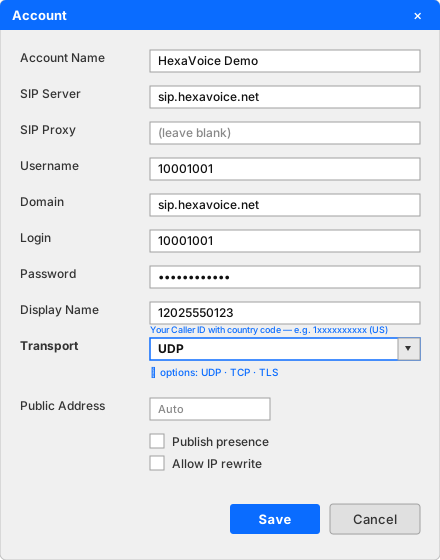
| Field | Value |
|---|---|
| Account Name | Any name you like (e.g. HexaVoice) |
| SIP Server | sip.hexavoice.net |
| Username | Your SIP Username (from dashboard) |
| Domain | sip.hexavoice.net |
| Login | Same as your SIP Username |
| Password | Your SIP Password (from dashboard) |
| Display Name | Your Caller ID with country code — e.g. 1xxxxxxxxxx (US) |
| Transport | UDP (default) |
| Port | 5060 |
Transport note: Start with UDP. If registration shows "Request Timeout" or calls fail on UDP (and switching to TCP does not help either), change Transport to TLS — many mobile networks and public Wi-Fi block or throttle plain UDP/TCP SIP. Use these ports per transport: UDP/TCP on 5060, TLS on 5061.
Step 4: Enable STUN (if behind router)
Go to Menu > Settings > Network:
- STUN Server: stun.l.google.com:19302
- Enable "Use STUN"
Step 5: Configure Audio
Go to Menu > Settings > Audio:
- Microphone: Select your headset microphone
- Speaker: Select your headset speakers
- Codecs: Enable G.711 PCMU/PCMA first, then G.729
Step 6: Test the Connection
Click Save. MicroSIP should show Registered in the status bar (green dot). Make a test call to confirm audio works.
Troubleshooting
Status shows "Registration Failed": Check username/password in HexaVoice dashboard > SIP Accounts.
Status shows "Request Timeout": Your network is likely blocking UDP. Change Transport to TCP (port 5060) or TLS (port 5061) and try again.
One-way audio: Enable STUN or switch from UDP to TCP transport.
Can't hear ring: Check speaker selection in Audio settings.